Become a payment trader and earn USDT on the payments you accept

Payment traders accept payments for ATLAS merchants on their own local accounts and earn commission in USDT after every completed order. Join the network in India, South Korea, Argentina or Venezuela.

What a payment trader does

Merchants connected to ATLAS take payments from buyers in your country. When a buyer pays, the money goes to one of your payment methods, a local receiving account you added. You see the order in your dashboard, the payment is confirmed, the merchant is credited in USDT, and your commission for that order is credited in USDT too.

Pay-outs run the other way. A merchant asks to send local currency to a recipient, you take the request and make the transfer, and you earn commission on that operation as well.

Orders reach you through routing: each pay-in goes to a trader with the right weight and a free payment method. How payment routing works.

You work in one of four countries: India, South Korea, Argentina and Venezuela.

What you need

  • Local accounts that receive payments in your country

  • A USDT deposit that meets the minimum before traffic can be switched on

  • For automatic confirmation in India: an Android phone on Android 8 or newer, or Chrome on a computer for Paytm for Business

  • Telegram

The application is short. It asks for a name or nickname, your Telegram username, the country you'll work in and your role. You can add how much USDT you can start with, but that field is optional.

From application to your first order

  1. Apply

    Name, Telegram username and your country. Pick Trader. Check that your Telegram privacy settings let new contacts message you.

  2. Sign in

    Support sends your access key on Telegram. You sign in to the portal with that key.

  3. Set up

    Add your payment methods, top up your USDT deposit and connect the app. You top up by sending USDT to the address the dashboard shows.

  4. Go live

    Switch on traffic and start taking orders. While traffic is on, new pay-ins appear on your Payments page.

Orders confirm themselves

The server checks the amount, the reference and the time. One reference closes one order, and nothing is confirmed on a guess.

  • Amount ₹3,049
  • Reference 4182 0933 7712
  • Time 10:24

In India, a device reads each payment as it lands and passes it to ATLAS. You add it once under Devices in your dashboard and pair it with a QR code or a code that works for ten minutes.

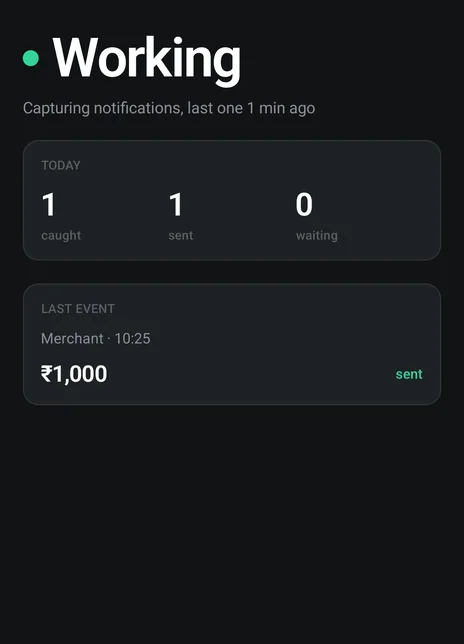
Atlas Forwarder on an Android phone: working, capturing notifications

Atlas Forwarder

An Android app for Android 8 or newer. In Settings → Reading mode you pick where your money arrives:

  • SMS and notifications: reads bank SMS and payment app notifications, and keeps working with the screen off
  • Airtel Merchant: opens each payment in the Airtel Merchant transactions list and reads its receipt
  • Google Pay for Business: reads the GPay for Business payments list

In the Airtel Merchant and Google Pay for Business modes the app works on the screen, so the phone stays on charge with the screen on and the payment list open.

Paytm for Business

A Chrome extension that reads your Paytm for Business dashboard, so you don't need a phone app. Keep one tab open on the transactions page. The extension sends each receipt to ATLAS and the server decides; it doesn't read your cookies or clipboard.

If a device needs attention, its card in the dashboard lists what to do. Until it's fixed, pay-ins on the affected payment methods are confirmed by hand.

How an order is confirmed

Each pay-in has a time window. While it's open, the buyer pays the exact amount to your payment method, and the pay-in closes once the payment is confirmed: by your device in India, or by you from the order list in your dashboard.

If the money arrives after the pay-in expired, you can still confirm it by hand from the payment details. In India you enter the 12-digit RRN from the receipt. One RRN closes one pay-in, and ATLAS refuses a number that already closed another one, so never type a made-up reference.

Each payment method has per-order and turnover limits. A method is Active when it can take payments, in Cooldown when it pauses between transactions, or Blocked when the system or an admin turns it off.

Pay-outs follow their own steps. You open the Pool on the Pay-Outs page, claim a request, make the bank transfer to the recipient and upload the receipt under My Pay-Outs. The system checks your proof before the pay-out completes.

Payment checks and disputes

Sometimes a merchant says the buyer paid and asks whether the money reached you. That question comes to you as a payment check, in the Payment checks section and in your notifications, with a time to answer by.

You pick what happened, and the check moves on from there:

  • Money received: the order completes and the check closes
  • A different amount arrived: you enter the amount, and support corrects the order
  • Not received, paid to someone else's details, a fake receipt, or a UTR already used: support checks and answers the merchant
  • Need a receipt or video: the client is asked for more proof, and the check comes back to you

A screenshot of your statement helps, because support agrees faster when it can see it. A check left past its time is marked overdue, and support is notified.

A dispute is handled in a thread. The merchant states the claim and the reason, you reply with evidence such as screenshots and transaction receipts before the deadline, and support reviews both sides and decides. If your evidence doesn't arrive in time, the dispute may be resolved against you. While a dispute is open, the funds involved sit in your frozen balance.

Your work in one place

  • Available, frozen and deposit balances

  • Traffic on and off with a switch

  • Earnings on every order

  • Payment methods with per-order and turnover limits

  • Disputes and support

Available is the USDT you're free to work with. Frozen is held in open orders, active pay-outs and disputes. The deposit is the security amount that has to meet the minimum for traffic to run. Each pay-in row shows your earnings in local currency and in USDT, and you withdraw from your Profile page to a USDT wallet on TRC-20.

Invite people, earn on their volume

Send your invite link. ATLAS pays you a share of the completed volume of the people you invite, and of the people they invite. They keep their full commission. Withdraw in USDT.

Share the link in Telegram or as a QR code. Support contacts everyone who applies through it, issues their access key and links them to you, and your share covers their pay-ins and pay-outs alike. Both tracks are explained on the payment affiliate program page.

FAQ

How do I get paid?

Commission is credited in USDT after every completed order. You withdraw it to a USDT wallet on TRC-20.

Which countries can I work in?

India, South Korea, Argentina and Venezuela.

Do I have to watch my phone all day?

No. Atlas Forwarder confirms payments on its own. In SMS and notifications mode it works with the screen off; in Airtel Merchant and Google Pay for Business modes, keep the phone on charge with the screen on and the payment list open.

How do I apply?

Fill in the short form in the portal. Support will message you on Telegram with your access key.

Do I need a deposit?

Yes. You top up a USDT deposit, and traffic can be switched on once it meets the minimum.

Can I take pay-outs as well as pay-ins?

Yes. Pay-out requests appear in the Pool. You claim one, make the transfer and upload the receipt for validation.

Can I use Paytm for Business without a phone app?

Yes. The ATLAS Chrome extension reads your Paytm for Business dashboard on a computer. Keep the computer on and the tab open on the transactions page.

Can I use more than one payment method?

Yes. Add each account as a payment method in the dashboard. Each one has its own limits, and in India you bind it to the device that reads its payments.

Apply in a couple of minutes

Support reaches you on Telegram with your access key.

Tell us what you need

Send the market, the expected volume and how you want to connect. We'll come back with the methods and the route.

Want to accept payments as a trader? Apply in the portal