A hosted payment page for UPI, IMPS and Kakao Pay
Create a pay-in and send the buyer to one link. The page shows the right way to pay in India or South Korea, follows the payment until it is confirmed and brings the buyer back to your site.
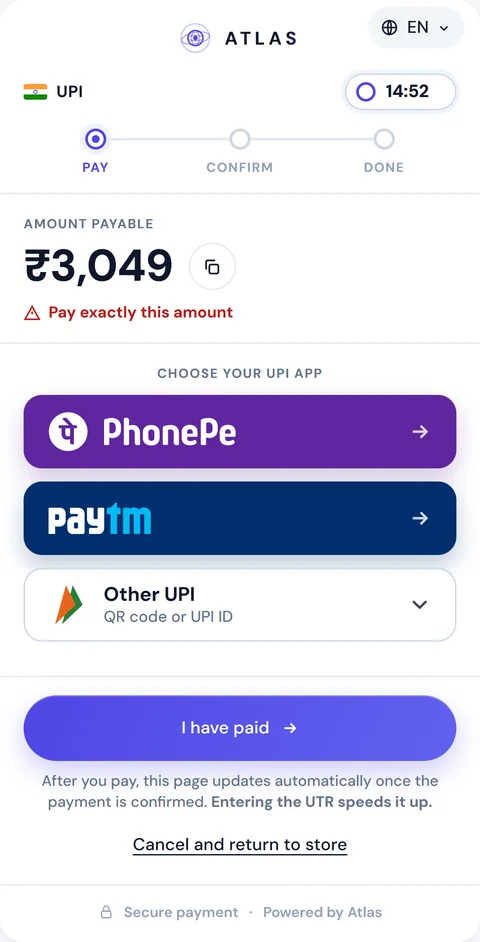
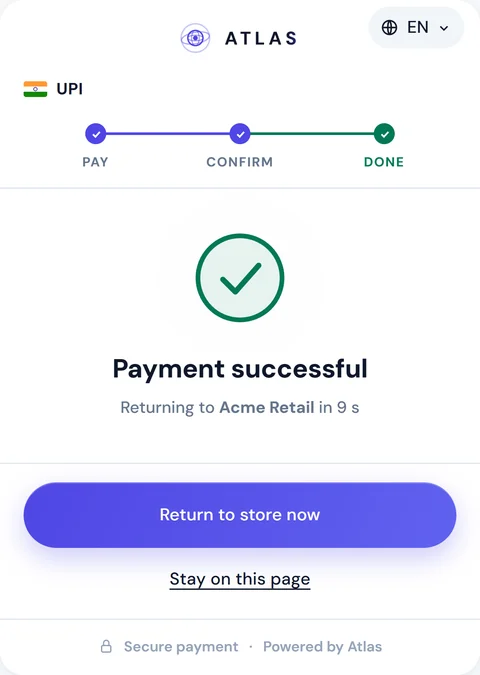
What the buyer sees, from link to return
Every pay-in created with a checkout object gets its own page at checkout.url. The layout is made for a phone screen, and it works the same in a desktop browser, where the buyer scans the QR with their phone.
-
Open the link
The amount sits at the top in large type with a copy button. If you switch it on, the page also says who the payment is to.
-
Choose how to pay
The page offers app buttons, a QR code, a UPI ID or bank details, depending on the method you set on the pay-in.
-
Pay in their own app
PhonePe, Paytm, any other UPI app, a banking app or Kakao Pay.
-
Tap "I have paid"
In India the buyer can add the 12-digit UTR to speed up confirmation. It is optional.
-
Watch it confirm
The tracker moves from Pay to Confirm to Done without a reload.
-
Back to your site
The buyer lands on your return URL with the pay-in id and your order id.
The page keeps checking the status by itself. A buyer who pays and closes the tab still gets a completed payment, and you still get the webhook.
The UPI payment page in India
For a UPI order, upi or upi_intent, the page gives the buyer three choices: PhonePe, Paytm and Other UPI. PhonePe and Paytm open the app's own send-money screen with the payee and the amount filled in. The amount is locked there, so the buyer can't send a different sum by mistake.
Other UPI unfolds a QR code and the UPI ID with a copy button, for any other UPI app. The buyer can also save the QR to the phone's gallery.
An IMPS order shows the account number, IFSC, bank and account holder. Every row has its own copy button, so the buyer never retypes an 11-character IFSC on a phone keyboard.
Bank transfer and Kakao Pay checkout in South Korea
A Korean bank transfer order (kor_bank) shows the account number, bank and account holder with copy buttons, plus a note to send exactly the amount on the screen.
A Kakao Pay order (kakao_pay) shows the Kakao Pay QR. On a phone, an Open Kakao Pay button comes first on the card, and the hosted page tries to open the app as soon as it loads. If the browser blocks that, the button is still there.
Korean pages never ask the buyer for a transfer reference. They tap "I have paid" and the page waits for the confirmation.
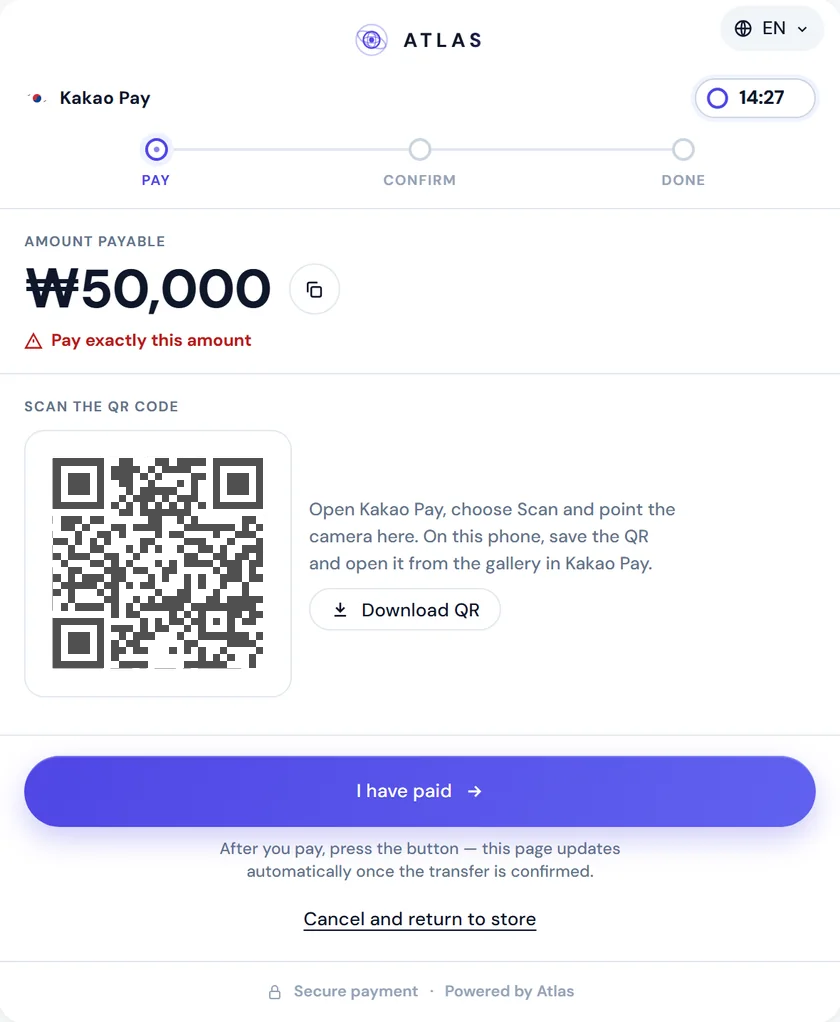
A countdown and a status that updates itself
The timer counts down to the expiry you set on the pay-in, anywhere from 5 minutes to an hour. It runs on our server's clock, so a wrong time on the buyer's phone doesn't change the deadline.
Once the buyer says they have paid, the deadline can move once, by up to 30 minutes, which leaves room to check a payment that is already on its way.
The Pay, Confirm, Done strip shows where the payment stands. If the buyer's connection drops, the page says it is offline and keeps its place instead of starting over.
When the payment is confirmed, the page switches to success and sends the buyer to your return URL on its own. Expired and unconfirmed payments go to the same URL. Only an explicit cancel uses your cancel URL, if you set one.
A payment page in English, Hindi and Korean
Pages for India speak English and Hindi. Pages for South Korea speak English and Korean. You pick the language per pay-in with locale (en, hi or ko). An unknown value falls back to the market's default, and checkout.locale in the response tells you which language the buyer will see.
On the hosted page the buyer can switch language with one tap. Labels, buttons and screen-reader text all change without a reload, and Hindi renders in Noto Sans Devanagari.
If you want your own wording on the buttons and status lines, you can set it separately for each language.
Your brand on the payment page
Start from a preset (light, dark, minimal, or auto, which follows the buyer's system theme) and set your colours, corner radius and fonts from a vetted list.
-
Your logo in place of ours, or no logo at all
-
Hide the ATLAS wordmark and the Powered by Atlas line
-
A background image or gradient behind the card
-
Switches for the button style, the timer style and the step strip
-
Your own text for fifteen buttons and status lines, in each language
-
A dark palette for buyers whose phones are in dark mode
The page accepts no free-form CSS. Our server checks every value, measures text contrast against WCAG AA when you save, and refuses any style that could hide the amount, the payment details, the timer or the cancel button. The theme you save applies to both the hosted page and the embedded window before the first paint. Preview colours, fonts and corner radius in the sandbox. For production, save the theme through the settings API or ask the ATLAS team.
Hosted link or embedded window
The pay-in response carries two addresses for the same payment: checkout.url for a redirect and checkout.embedUrl for an iframe in your own checkout. Pick one. The statuses and webhooks are the same either way.
A redirect needs no front-end work, and on a phone it puts fewer layers between the buyer's tap and their banking app. See how it works in the payment link API.
The embedded checkout takes one script and one Atlas.mount call. It opens only on the domains you register for your account, up to 10 of them, all on https.
Whichever you choose, the return to your site and the browser's success event only update your interface. Credit the order from the signed pay_in.completed webhook or a status request.
The API docs cover the hosted payment link and the embedded window.
{ "amount": 3049, "currency": "INR", "paymentMethod": "upi", "merchantOrderId": "order-12345", "checkout": { "returnUrl": "https://shop.example/done" }}{ "payInId": "5e6f7a8b-9c0d-41e2…", "amount": 3049, "checkout": { "url": "https://api.atlas-online.io/pay/…" }}FAQ
What is a hosted payment page?
A payment page that ATLAS hosts for you. You create a pay-in with a checkout object, send the buyer to checkout.url, and the page takes the payment and returns the buyer to your site.
Which payment methods does the ATLAS pay page support?
In India: UPI, UPI Intent and IMPS. In South Korea: bank transfer and Kakao Pay. Our other markets connect through the API.
Does the buyer have to enter a UTR?
No. In India the 12-digit UTR is optional and speeds up confirmation. Pages for South Korea never ask for a reference.
What happens if the buyer closes the page after paying?
The payment still completes once it is confirmed, and your webhook fires as usual. The redirect to your return URL is a convenience for the buyer and never the payment result.
Can the payment page show my brand instead of ATLAS?
Yes. Use your logo, colours, fonts and corner radius, and hide the ATLAS wordmark and the Powered by Atlas line. Preview colours, fonts and corner radius in the sandbox. For production, save the theme through the settings API or ask the ATLAS team.
Which languages does the payment page support?
English, Hindi and Korean. You set the language per pay-in with locale, and on the hosted page buyers can switch it themselves.
How long does the payment page stay open?
Until the expiry you set on the pay-in, from 5 to 60 minutes. After the buyer says they have paid, it can extend once by up to 30 minutes.
Can I try the page before going live?
Yes. In the sandbox dashboard, Pay-Ins → Test Pay Page creates a payment link and a QR code that opens it on a real phone. It runs as an ordinary pay-in, with the same statuses and webhooks.